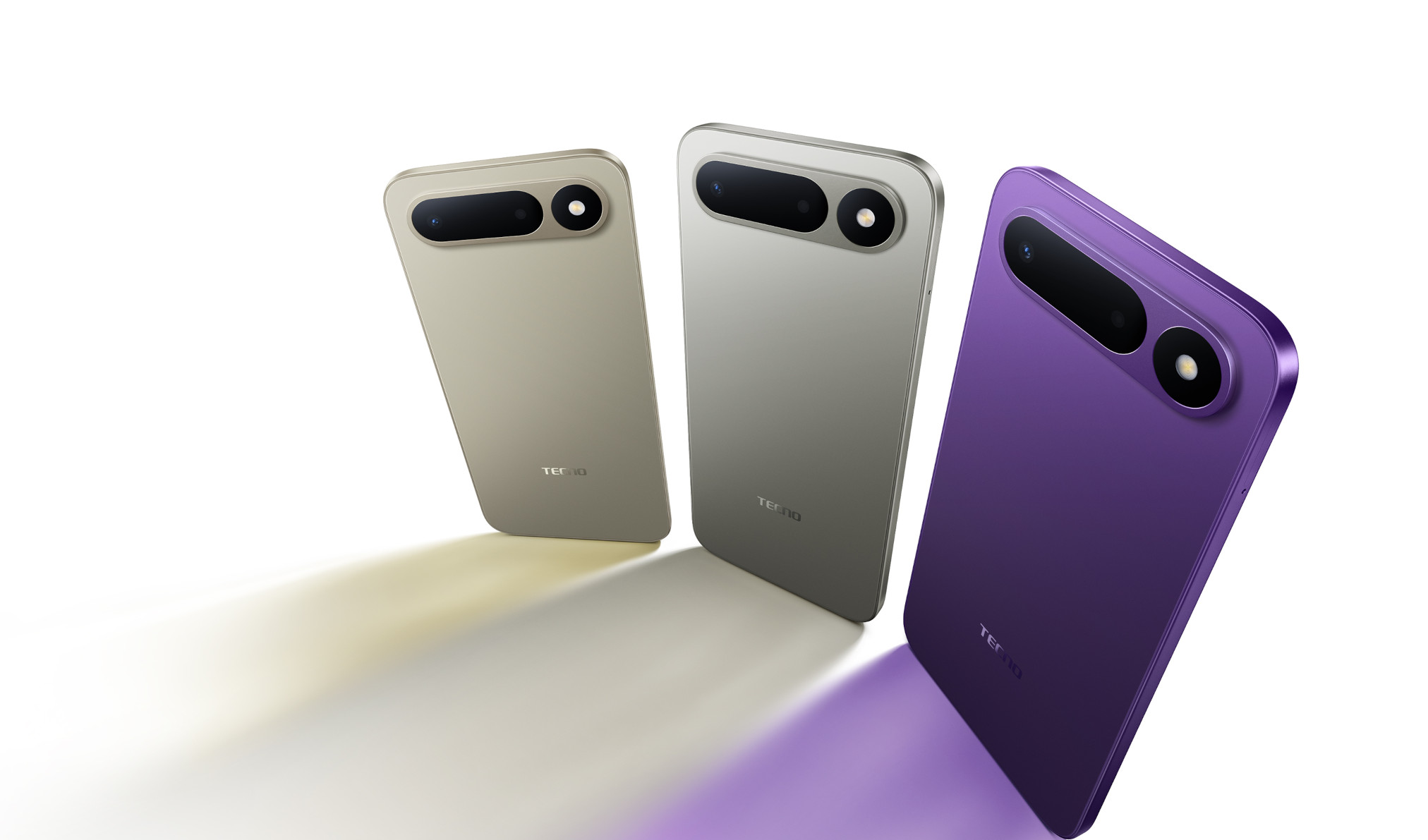
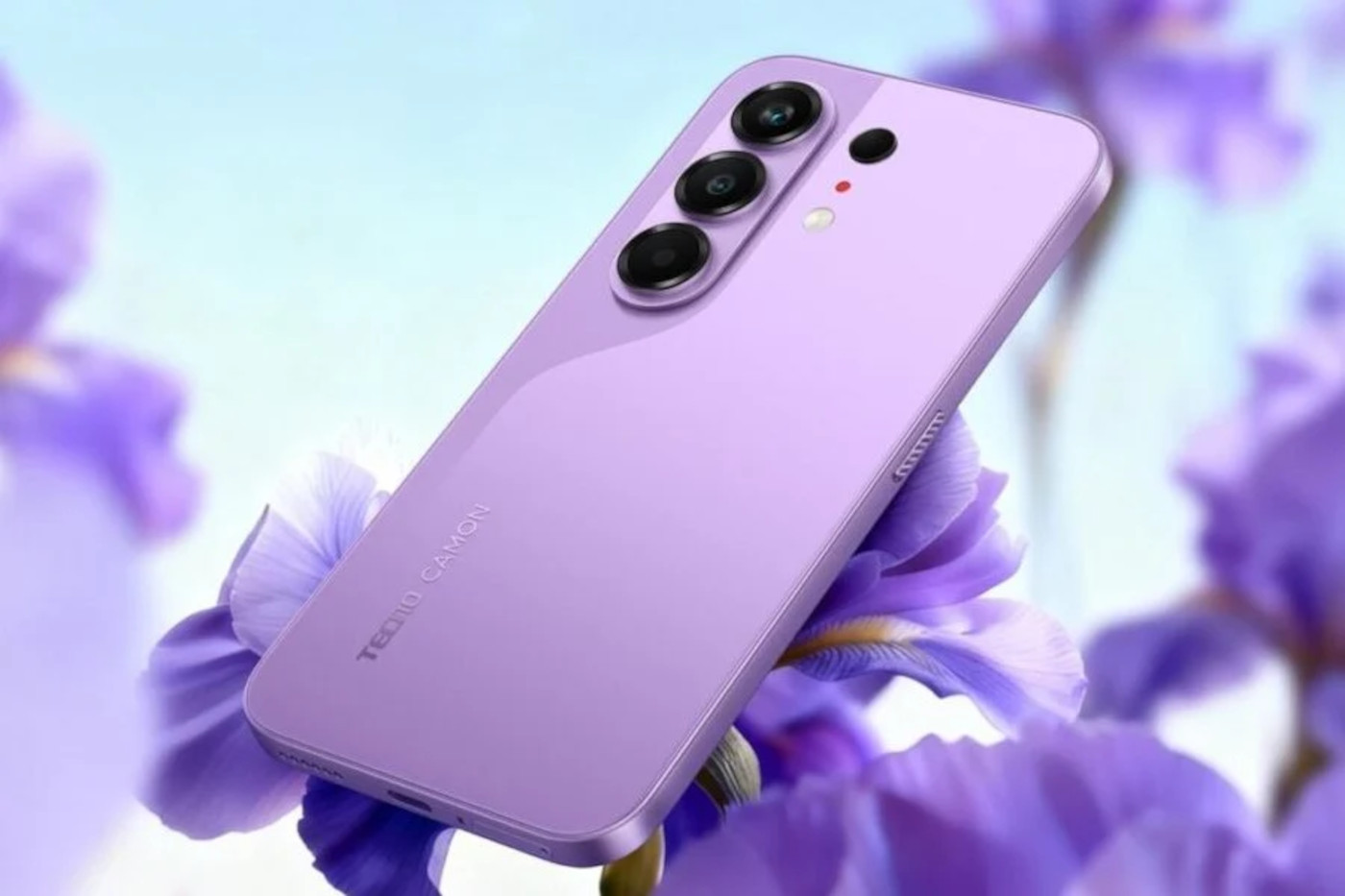
These standard Android steps work on many TECNO phones. Available shortcuts depend on your model and HiOS version.
Use the buttons
- Open the screen you want to capture.
- Briefly press the Power and Volume Down buttons at the same time.
- Look for the screenshot preview. Tap it if you want to crop or edit the image.
Find your screenshot
Open your gallery or Google Photos and look for the Screenshots folder. From there you can share the image or delete it.
Capture a longer page
On supported devices and screens, choose Capture more after taking a screenshot, then adjust the selection. This option is not available in every app.
If it does not work
Some apps protect their screens from capture. If the button shortcut fails elsewhere, check the manual for your model’s screenshot controls.
Reference: Google’s Android screenshot guide.